
Uncategorized
How to Use Sora 2 in ChatGPT: A Practical Guide
How to Use Sora 2 in ChatGPT: A Practical Guide If you want to create AI videos with Sora 2 inside or alongside ChatGPT,
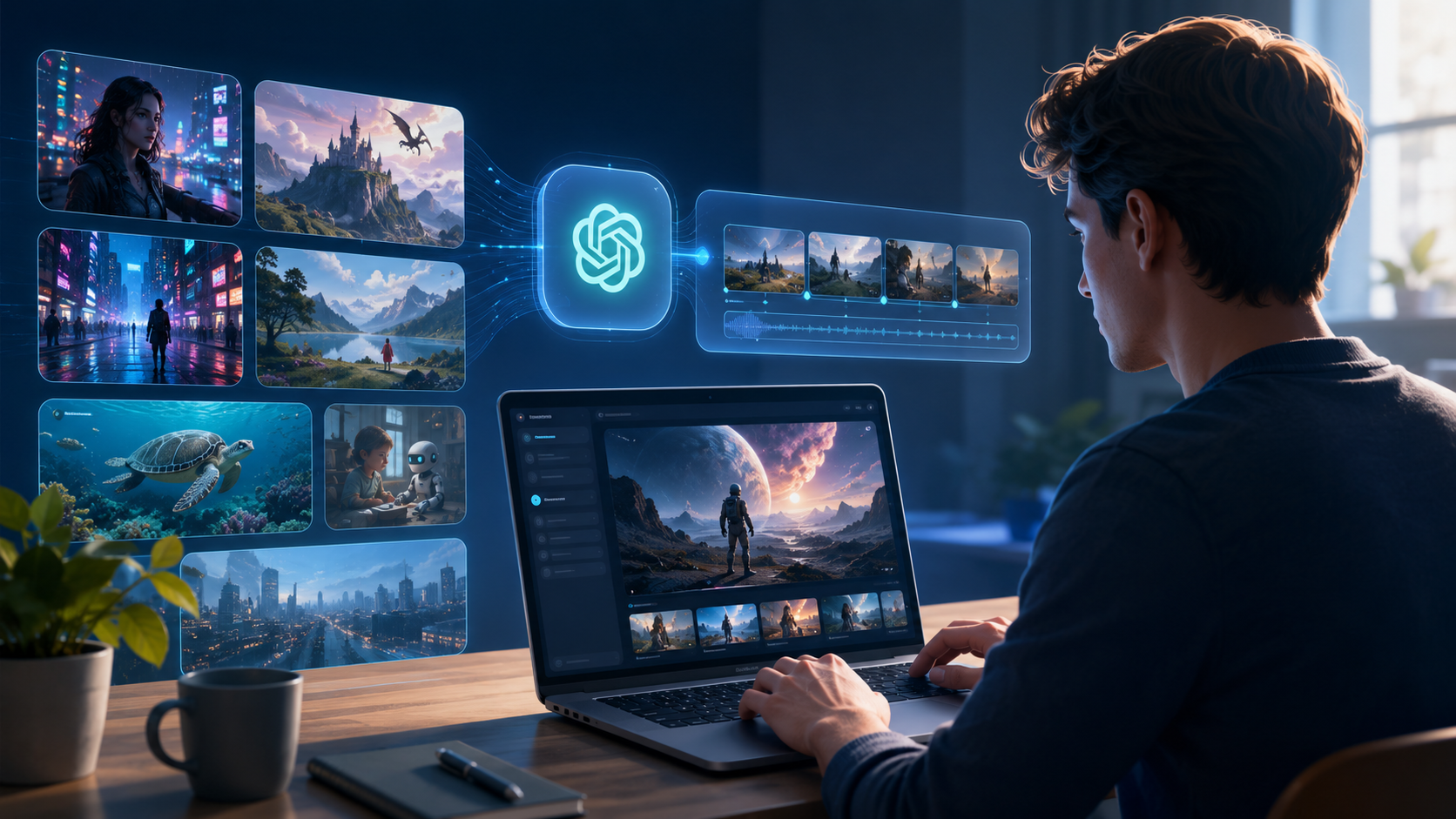
If you want to create AI videos with Sora 2 inside or alongside ChatGPT, the key question is simple: how do you turn a prompt into a usable video workflow? This guide explains the practical steps, what to configure, and how to use Sora 2 effectively for text-to-video and image-to-video creation.
What Sora 2 Is Designed to Do
Conclusion: Sora 2 is built for generating realistic AI videos from text prompts or reference images, with motion, camera direction, and synchronized audio.
Sora 2-style video generation focuses on turning creative instructions into short video clips with coherent motion and cinematic control. The available workflow supports:
- Text-to-video generation
- Image-to-video generation
- Multi-shot storytelling
- Synchronized audio
- Camera and style control
- Sora 2 Pro access for higher-fidelity output
How to use this in practice
- Start with a clear prompt that describes the scene, action, and mood.
- Decide whether you need a brand-new video from text or an animated version of an image.
- Keep the prompt specific about motion, framing, and audio cues when needed.
How to Start Using Sora 2 in a ChatGPT Workflow
Conclusion: The most practical way to use Sora 2 with ChatGPT is to write and refine prompts in ChatGPT, then send them into a Sora 2 video generation workflow.
The API offers one unified approach for Sora-style generation. In a real workflow, ChatGPT can help you:
- Draft the video prompt
- Refine scene structure
- Add style or camera direction
- Prepare image references if needed
- Review the output and iterate
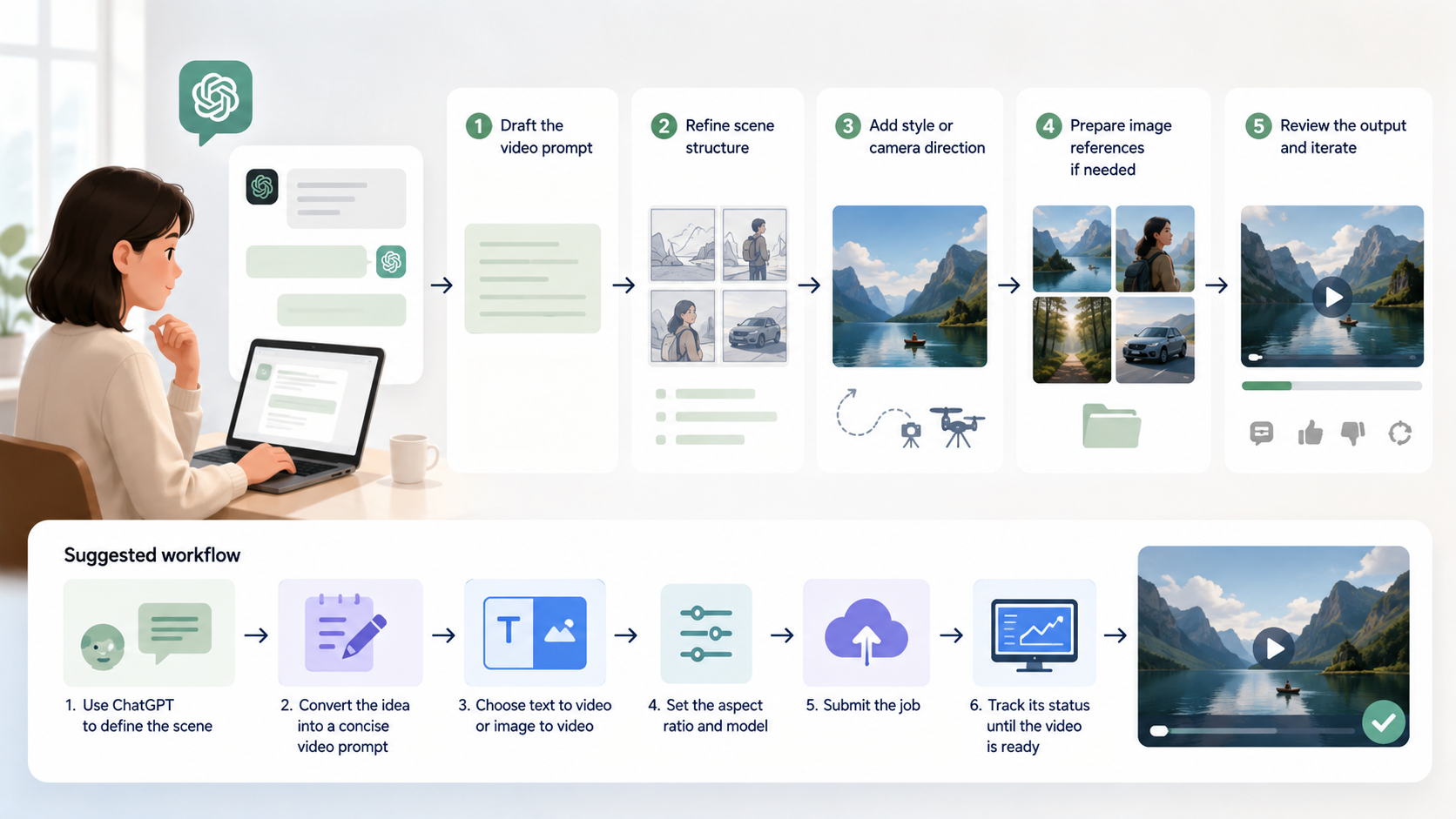
Suggested workflow
- Use ChatGPT to define the scene.
- Convert the idea into a concise video prompt.
- Choose text-to-video or image-to-video.
- Set the aspect ratio and model.
- Submit the job and track its status until the video is ready.
Practical advice
- Keep prompts visual and direct.
- If the scene has multiple actions, write them in sequence.
- Mention audio only when it matters to the scene.
- Use ChatGPT to create prompt variants before you generate the final video.
Key Settings You Should Know
Conclusion: Good results depend on choosing the right model, aspect ratio, and creative direction before generating.
The main inputs are the model, the prompt and the core generation options. Here is a simple summary:
| Setting | What it controls | Practical advice |
|---|---|---|
| Model | Video generation quality and capability | Choose the model that matches your quality needs |
| Aspect Ratio | Frame shape of the video | Use the ratio that fits the platform or use case |
| Input Type | Text prompt or image reference | Use text-to-video for original scenes, image-to-video for animation |
| Camera Direction | Framing and cinematic style | Specify this when you want more control over composition |
| Audio | Sound effects, dialogue, ambience | Add audio instructions when sound is part of the scene |
Key notes
- A sample configuration mentions Sora2-10s
- A sample aspect ratio is 16:9 landscape
- The cost per generation in the example is 100 credits
Actionable recommendation
Before generating, decide:
- What the scene is
- Whether you need motion from text or from an image
- How long or detailed the sequence should feel
- Whether audio is essential
- What framing or camera movement the scene needs
Best Practices for Writing Better Sora 2 Prompts
Conclusion: The quality of the output depends heavily on how clearly you describe motion, scene continuity, and audio.
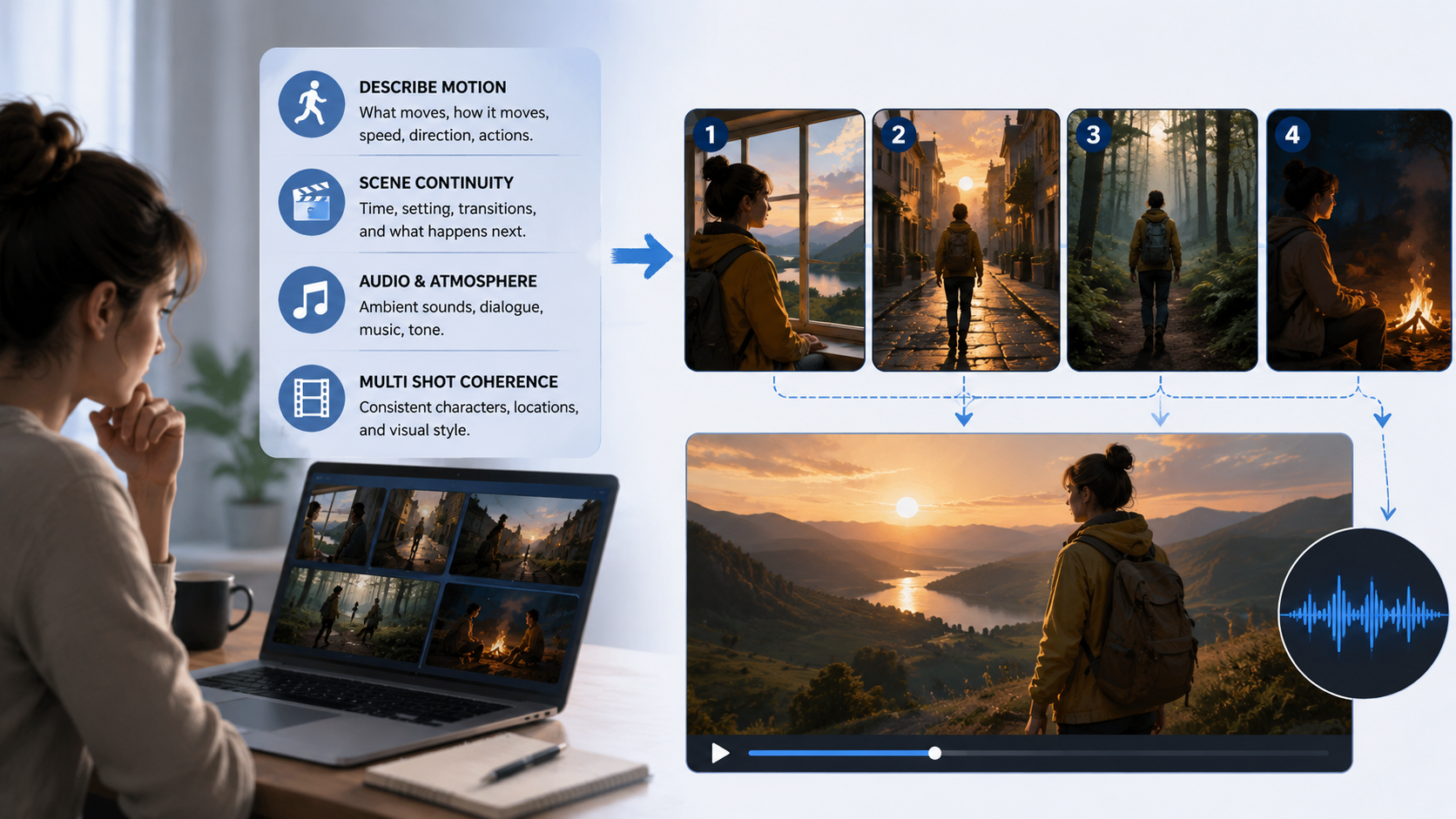
The focus is on realistic motion, synced audio, and multi-shot coherence. That means your prompt should do more than describe a subject — it should describe what happens.
Prompting checklist
Use the following structure:
- Subject: Who or what appears in the video
- Action: What the subject is doing
- Environment: Where the scene takes place
- Style: Realistic, cinematic, animated, and so on
- Camera: Close-up, wide shot, tracking shot, etc.
- Audio: Dialogue, ambience, effects, or silence
- Sequence: If there are multiple shots, explain the transitions
Example prompt structure
- A person walks through a rainy neon street
- The camera follows from behind
- Reflections shimmer on the pavement
- City ambience and light traffic sound are present
Practical advice
- Avoid vague prompts like “make it cool.”
- Prefer concrete visual details.
- If you want multiple shots, describe the transitions clearly.
- If you are using an image reference, explain how the motion should evolve from that image.
When to Use Text-to-Video vs. Image-to-Video
Conclusion: Choose text-to-video for original scenes and image-to-video when you want to animate a specific visual reference.
Both modes are supported, and each is useful in a different situation.
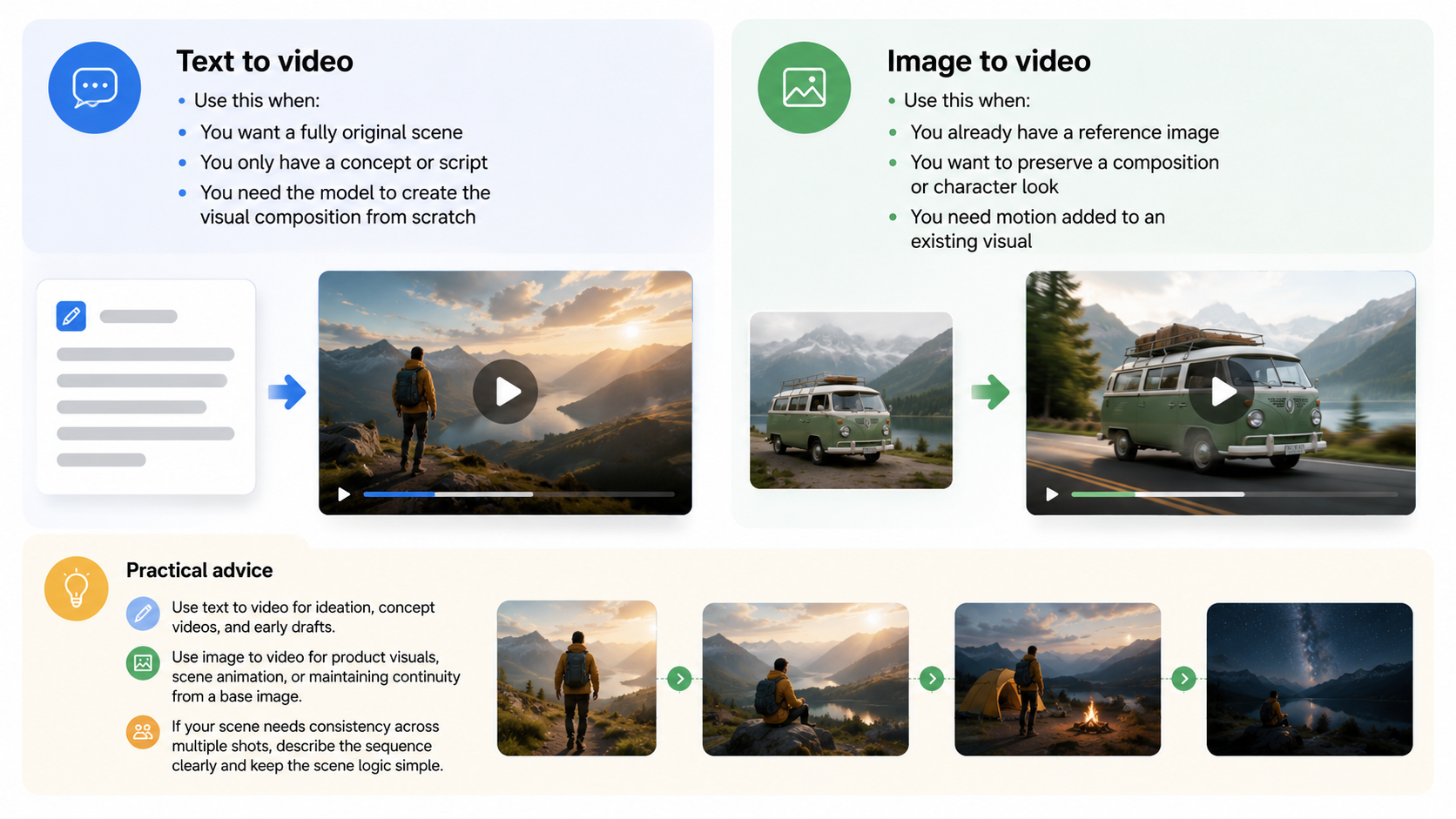
Text-to-video
Use this when:
- You want a fully original scene
- You only have a concept or script
- You need the model to create the visual composition from scratch
Image-to-video
Use this when:
- You already have a reference image
- You want to preserve a composition or character look
- You need motion added to an existing visual
Practical advice
- Use text-to-video for ideation, concept videos, and early drafts.
- Use image-to-video for product visuals, scene animation, or maintaining continuity from a base image.
- If your scene needs consistency across multiple shots, describe the sequence clearly and keep the scene logic simple.
FAQ
Can I use Sora 2 directly inside ChatGPT?
The practical workflow is to use ChatGPT for prompt creation and refinement, then pass the result into a Sora 2 video generation setup if available in your environment.
What kinds of videos can Sora 2 generate?
It supports text-to-video and image-to-video generation, multi-shot storytelling, realistic motion, and synchronized audio.
Do I need an image to use Sora 2?
No. You can use text-to-video without an image. Image-to-video is optional when you want to animate a reference frame.
What should I include in my prompt?
Include the subject, action, setting, style, camera direction, and audio if relevant. Clear motion instructions usually help more than vague creative language.
Is multi-shot storytelling supported?
Yes. It supports multi-shot sequences with coherent transitions and scene continuity.
Summary
If you want to use Sora 2 in a ChatGPT-based workflow, the main idea is to use ChatGPT as the prompt-building layer and Sora 2 as the video generation layer. Focus on clear scene descriptions, choose the right mode for your input, and define camera, style, and audio details when they matter. For best results, keep prompts specific, sequence actions logically, and use image-to-video when you want to animate an existing visual.
Call it with the Sora 2 API
You can run everything in this article from your own code. Call POST /api/ai/generate with your key in the Authorization header (Bearer sk_…), the model, your prompt and options such as duration and aspect ratio. The reply returns a task ID; poll GET /api/ai/task?taskId=… until taskStatus is success. Swap model for any slug listed by GET /api/ai/router01/models. Every parameter is explained in the Sora 2 API documentation.
curl -X POST https://sora2-api.com/api/ai/generate \
  -H "Authorization: Bearer sk_YOUR_API_KEY" \
  -H "Content-Type: application/json" \
  -d '{
    "mediaType": "video",
    "model": "sora-2",
    "prompt": "A red fox runs through fresh snow at sunrise, slow tracking shot",
    "options": { "duration": 8, "aspect_ratio": "16:9" }
  }'
The same flow in JavaScript: submit the task, poll its status and read the video URL.
const headers = {
  Authorization: 'Bearer sk_YOUR_API_KEY',
  'Content-Type': 'application/json',
};

// Submit the task
const submit = await fetch('https://sora2-api.com/api/ai/generate', {
  method: 'POST',
  headers,
  body: JSON.stringify({
    mediaType: 'video',
    model: 'sora-2',
    prompt: 'A red fox runs through fresh snow at sunrise, slow tracking shot',
    options: { duration: 8, aspect_ratio: '16:9' },
  }),
}).then((res) => res.json());
const { taskId } = submit.data;

// Poll until the video is ready, then read its URL
let task;
do {
  await new Promise((resolve) => setTimeout(resolve, 5000));
  task = (
    await fetch(`https://sora2-api.com/api/ai/task?taskId=${taskId}`, { headers }).then(
      (res) => res.json()
    )
  ).data;
} while (!['success', 'failed', 'canceled'].includes(task.taskStatus));
console.log(task.taskInfo?.videos?.[0]?.videoUrl);
Go further: Sora 2 API integration guide · Sora 2 API pricing