
How to Use Sora 2: A Practical Guide to Getting Started
How to Use Sora 2: A Practical Guide to Getting Started
If you want to create AI videos with realistic motion, synchronized audio, and flexible control over style or camera direction, the key question is simple: how do you use Sora 2 effectively? This guide explains the basic workflow, the main creation modes, and the practical steps you can follow to generate better results with less trial and error.
1. Understand What Sora 2 Is Best For
Conclusion: Sora 2 is useful when you need AI-generated video from text or images, especially when realism, motion, and audio matter.
Sora 2-style generation is designed for two main use cases:
- Text-to-video: turn a written prompt into a video clip
- Image-to-video: animate a reference image into a moving scene
A production-oriented API setup, such as Tikdek’s unified Sora 2 video generation API, also supports:
- realistic motion
- synchronized audio
- camera and style control
- multi-shot storytelling
- production-ready API responses
Practical advice:
- Start with a single, clear scene if you are new to video prompting.
- Use text-to-video when you want full creative generation.
- Use image-to-video when composition or a reference look must stay consistent.
2. Set Up Your Workflow Before Generating
Conclusion: Good setup reduces failed generations and makes results easier to control.
A typical workflow for using Sora 2 through an API includes four steps:
- Create an API key from the dashboard
- Send a prompt or reference image
- Monitor the generation status
- Fetch the finished result when ready
This structure is helpful because video generation is usually asynchronous. Instead of waiting in a single request, you submit a job, check progress, and retrieve the output once it completes.
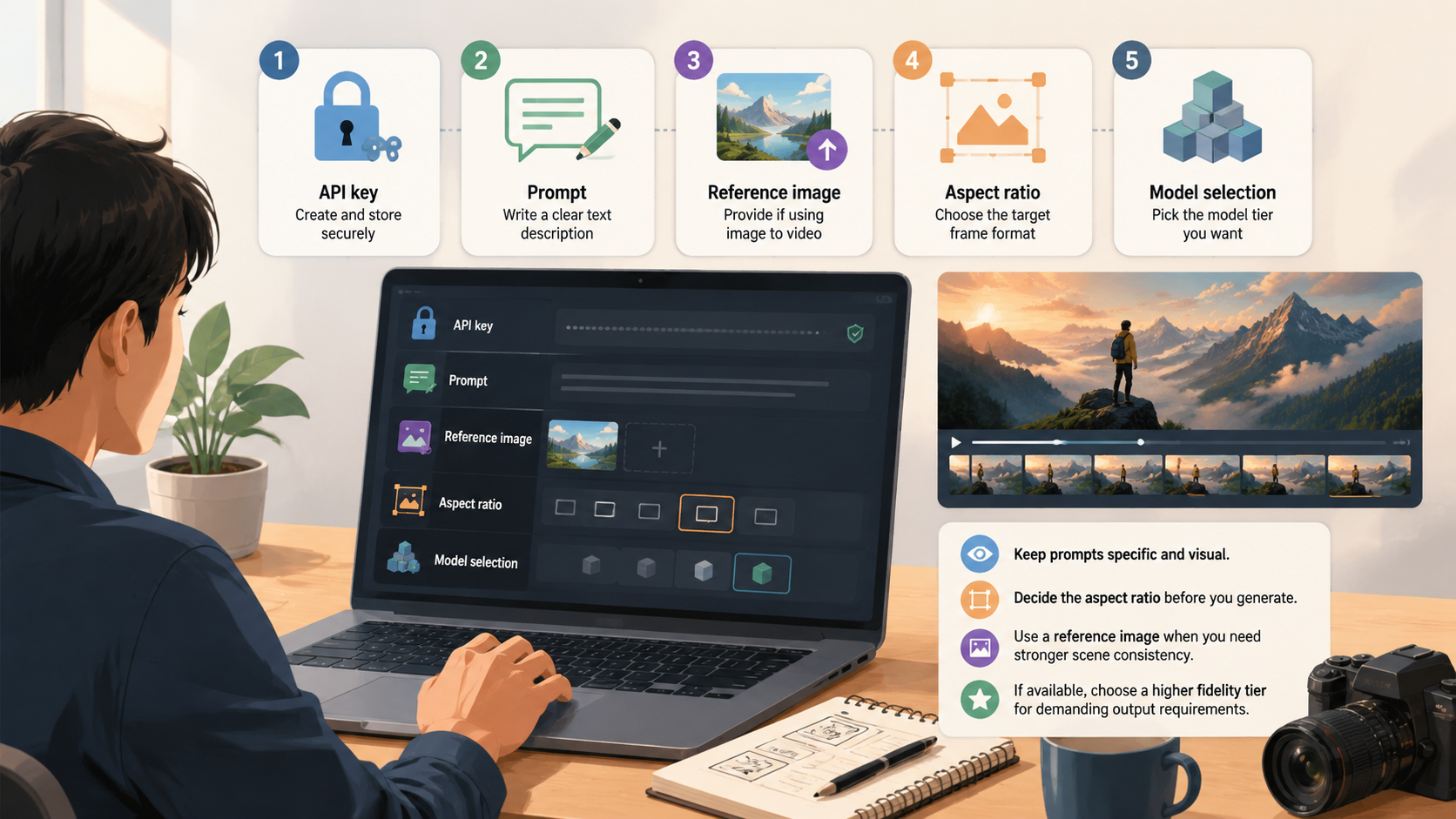
Recommended setup checklist
| Step | What to prepare | Why it matters |
|---|---|---|
| API key | Create and store securely | Needed to authenticate requests |
| Prompt | Write a clear text description | Improves generation accuracy |
| Reference image | Provide if using image-to-video | Helps preserve composition |
| Aspect ratio | Choose the target frame format | Controls the output shape |
| Model selection | Pick the model tier you want | Affects quality and use case |
Practical advice:
- Keep prompts specific and visual.
- Decide the aspect ratio before you generate.
- Use a reference image when you need stronger scene consistency.
- If available, choose a higher-fidelity tier for demanding output requirements.
3. Choose the Right Generation Mode
Conclusion: The best mode depends on whether your priority is creative freedom or visual consistency.
Sora 2 workflows usually fall into two broad categories:
Text-to-video
Use this when you want the model to create a scene from scratch based on a written prompt.
Best for:
- concept videos
- creative storytelling
- scene ideation
- quick visual exploration
Image-to-video
Use this when you already have a visual reference and want motion added to it.
Best for:
- product-style animation
- character or scene continuity
- controlled composition
- reference-based creative work
Feature comparison
| Mode | Input | Strength | Best use case |
|---|---|---|---|
| Text-to-video | Prompt only | Maximum creative flexibility | Original scene generation |
| Image-to-video | Image + prompt | Stronger visual consistency | Animating a known composition |
Practical advice:
- Choose text-to-video for discovery and experimentation.
- Choose image-to-video when the scene layout already matters.
- If your output needs multiple connected scenes, write prompts that describe continuity between shots.
4. Control Style, Camera, and Audio for Better Results
Conclusion: The more clearly you define visual direction, the more useful and predictable the output becomes.
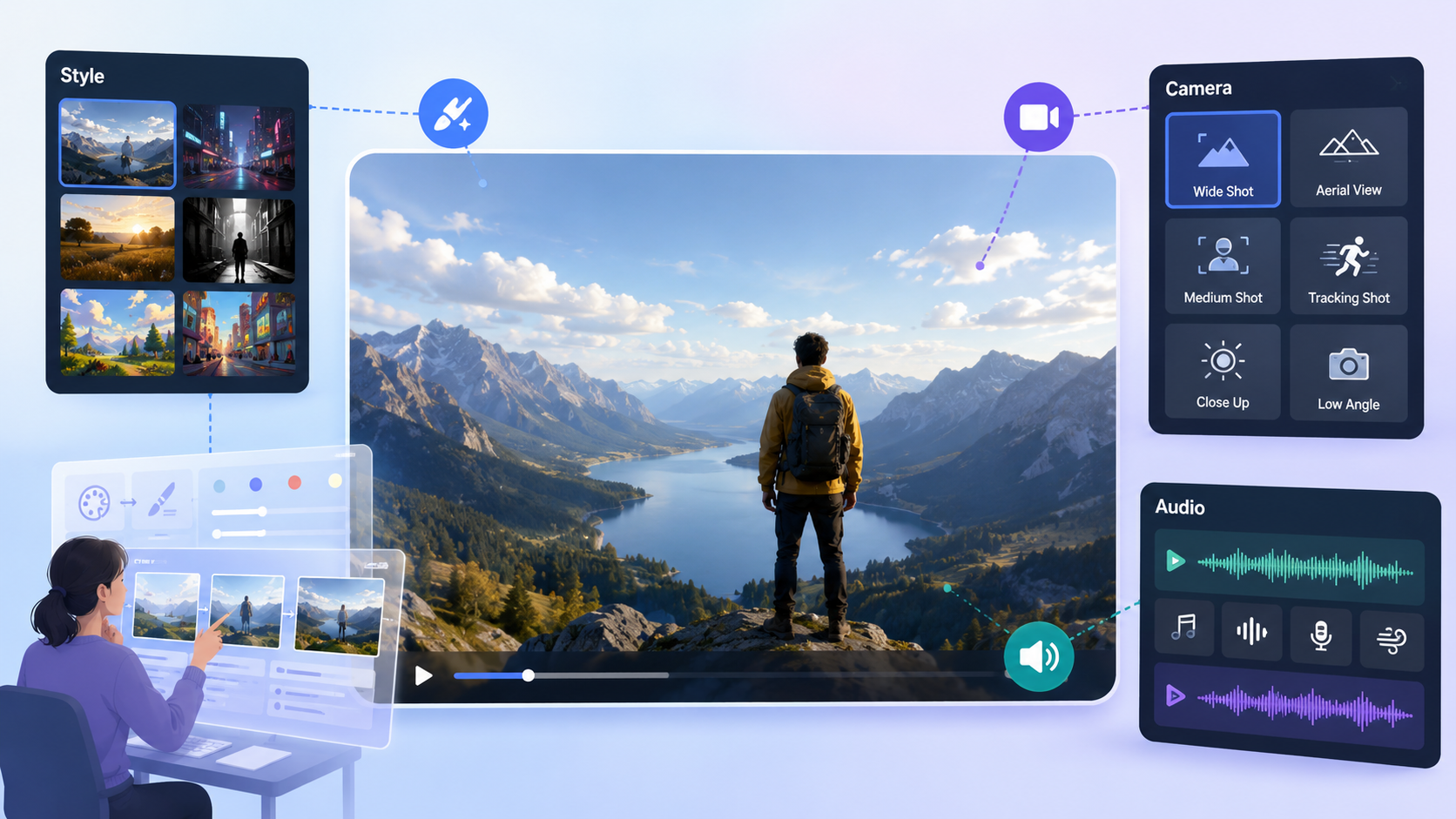
According to the feature set, Sora 2-style tools can support:
- camera direction
- framing and aspect ratio control
- cinematic style guidance
- synchronized audio
- dialogue, sound effects, and ambience
- multi-shot sequences
These controls are important because video generation is not only about what appears in the scene, but also how the scene is framed, how it moves, and how sound supports the action.
Practical advice:
- Mention camera movement only when needed, such as “slow push-in” or “static wide shot.”
- Describe the style in plain language, such as realistic, cinematic, documentary, or stylized.
- Include audio details if you want sound synced to action.
- For multi-shot content, specify what carries over from one shot to the next.
Prompt planning tips
- Keep one primary subject per scene if you want fewer distractions
- Add the environment early in the prompt
- State motion clearly: walk, turn, pan, zoom, enter, exit
- If using multiple shots, define the sequence in order
5. Use the API in a Production-Friendly Way
Conclusion: If you are building an app or service, the API workflow matters as much as the generation prompt.
A unified API setup makes it easier to integrate Sora 2 generation into products and workflows. The typical pattern is:
- submit a generation request
- track job progress
- retrieve the completed video
- scale with quotas and batching if needed
This is especially useful when you want to support repeated usage, team workflows, or automation.
Practical advice:
- Build your app around job status polling or result retrieval.
- Store prompt templates for repeatable output.
- Use batching when generating multiple clips.
- Plan for quota usage if your workflow has regular volume.

FAQ
What is the easiest way to use Sora 2?
The easiest way is to start with a simple text-to-video prompt, then refine the prompt after reviewing the first result.
Can I use an image instead of a text prompt?
Yes. Image-to-video workflows let you animate a reference image into a moving scene.
Does Sora 2 support audio?
Yes, the feature set includes synchronized audio, including dialogue, sound effects, and ambience aligned with the action.
Can I control the camera style?
Yes. Camera direction, framing, aspect ratio, and cinematic style can be specified in the request.
Is Sora 2 suitable for multi-shot videos?
Yes. Multi-shot storytelling is supported, which helps maintain coherence across cuts and transitions.
Summary
If you want to know how to use Sora 2, the process is straightforward: choose a generation mode, prepare a clear prompt or reference image, set your aspect ratio and style direction, submit the job, and retrieve the result when it is ready.
For the best outcome:
- use text-to-video for original ideas
- use image-to-video for stronger visual consistency
- describe motion, camera, and audio clearly
- structure prompts for single scenes or multi-shot sequences
- integrate the workflow carefully if you are building an app
In short, Sora 2 works best when you combine a clear creative brief with a clean generation workflow.