
Sora 2 API Is Not Working? Common Causes, Troubleshooting Steps, and Fixes
Sora 2 API Is Not Working? Common Causes, Troubleshooting Steps, and Fixes
If your sora 2 api is not working, the problem is usually not the model itself but a setup, request, or workflow issue. This guide explains the most common failure points and gives you practical checks to isolate the problem quickly, whether you are building text-to-video or image-to-video flows.
1. Check API Key, Authentication, and Access Permissions
Conclusion: Authentication issues are one of the most common reasons a Sora 2 API request fails.
A valid API key is required before you can call the generation endpoint. If the key is missing, expired, copied incorrectly, or not authorized for the selected model, the request may fail immediately or return an authorization error.
What to verify
- Your API key is present in the request headers or client configuration
- The key has not been revoked or regenerated
- Your account has access to the model or tier you are trying to use
- Your environment variables are loaded correctly in production and local testing
Practical fixes
- Regenerate the key from your dashboard if you suspect it is invalid
- Re-check the header format used by your client
- Confirm the service is reading the correct environment file
- Use a simple test request first before integrating into a full application
2. Validate Model Selection, Parameters, and Request Format
Conclusion: A request can fail if the model name, aspect ratio, or payload structure does not match the API’s expected format.
Sora-style generation APIs typically require specific fields such as model selection, prompt text, and optional image or style controls. If a field is missing or malformed, the server may reject the request or return an unusable job.
Common request issues
- Incorrect model name
- Missing prompt or reference image
- Unsupported aspect ratio or configuration value
- Wrong JSON structure
- Invalid content type in the request body
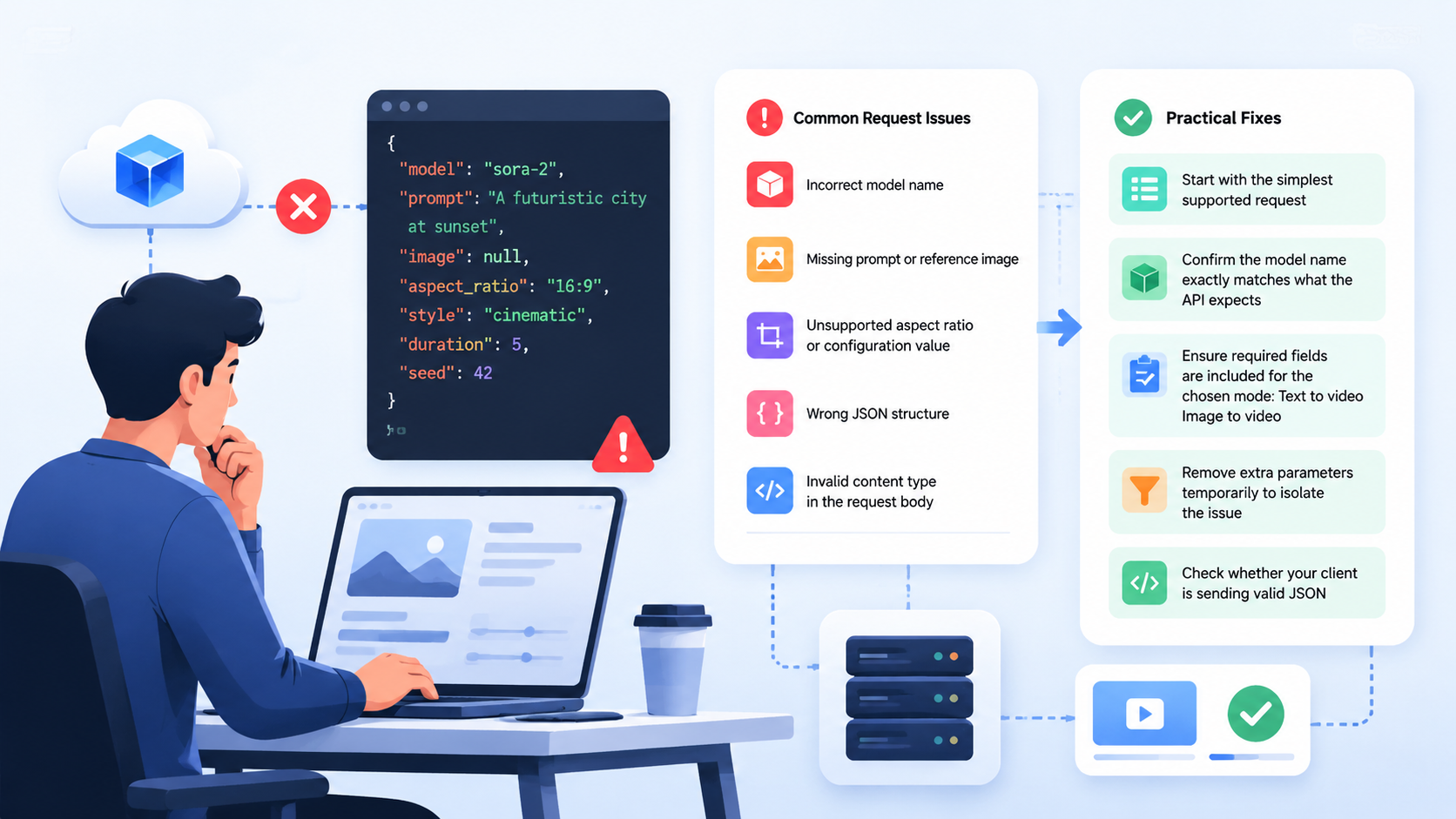
Practical fixes
- Start with the simplest supported request
- Confirm the model name exactly matches what the API expects
- Ensure required fields are included for the chosen mode:
- Text-to-video
- Image-to-video
- Remove extra parameters temporarily to isolate the issue
- Check whether your client is sending valid JSON
3. Understand Job Status, Polling, and Result Retrieval
Conclusion: In many cases, the API is working, but the job is still processing or the result is being fetched incorrectly.
Sora 2-style video generation is usually asynchronous. That means you submit a job, then poll for status until the video is ready. If your code expects an immediate final response, it may look like the API is broken even when the generation pipeline is working correctly.
Typical workflow
- Create an API key
- Send your prompt or reference image
- Track generation status
- Fetch the result when the job is complete
Practical fixes
- Make sure your application handles asynchronous responses
- Poll the job status endpoint at reasonable intervals
- Check whether the job is still queued, processing, completed, or failed
- Do not assume the initial request will include the final video output
4. Check Quotas, Billing, and Usage Limits
Conclusion: If you run out of available credits or exceed usage constraints, generation can stop even though the integration itself is correct.
Some APIs use a credit-based system for video generation. If your account does not have enough credits or your request exceeds current limits, the job may fail or remain unavailable.
What to verify
- Your account balance or available credits
- Whether the selected model consumes a specific credit amount
- Whether batch usage or repeated retries are exhausting your quota
- Whether your application is sending too many requests too quickly
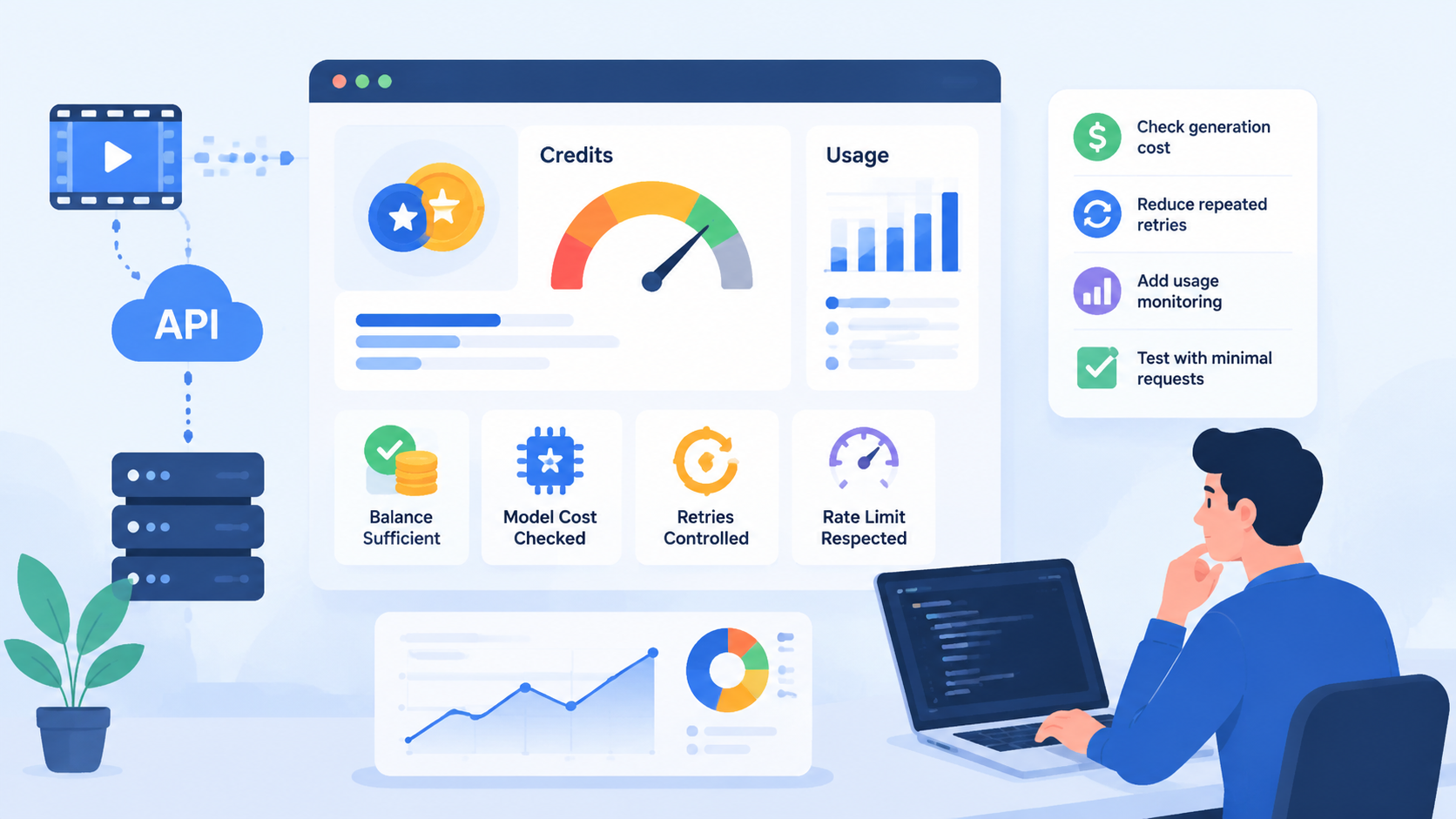
Practical fixes
- Check the cost of the selected generation mode before testing
- Reduce repeated retries during debugging
- Add usage monitoring to your application
- Test with a minimal number of requests to confirm the pipeline is stable
5. Review Prompt Quality, Input Assets, and Generation Constraints
Conclusion: Low-quality or incompatible inputs can cause weak results, delayed processing, or failed generations.
For text-to-video and image-to-video workflows, the input quality directly affects the output. A vague prompt, a broken image URL, or a mismatched reference asset can lead to failures or poor results that look like API problems.
Common input-related issues
- Prompt is too vague or contradictory
- Reference image is inaccessible or incorrectly formatted
- Input size or format does not meet expectations
- Scene description conflicts with camera or motion instructions
Practical fixes
- Use clear, direct prompts with a single objective
- Verify that reference images are reachable and valid
- Test with one simple scene before using multi-shot storytelling
- Keep camera direction and style instructions consistent
- If outputs are unstable, simplify the creative direction first
Quick Troubleshooting Table
| Symptom | Likely Cause | What to Check | Suggested Fix |
|---|---|---|---|
| Authentication error | Invalid or missing API key | Headers, environment variables, access rights | Regenerate key and test again |
| Request rejected | Wrong model or payload format | JSON body, required fields, content type | Simplify the request and validate the schema |
| No final video returned | Async job still processing | Job status endpoint, polling logic | Wait for completion and fetch results later |
| Generation stops unexpectedly | Credits or quota issue | Usage balance, request frequency | Reduce retries and verify available credits |
| Poor or inconsistent output | Weak prompt or bad input asset | Prompt clarity, image validity, scene consistency | Refine prompt and test with simpler inputs |
Recommended Debugging Checklist
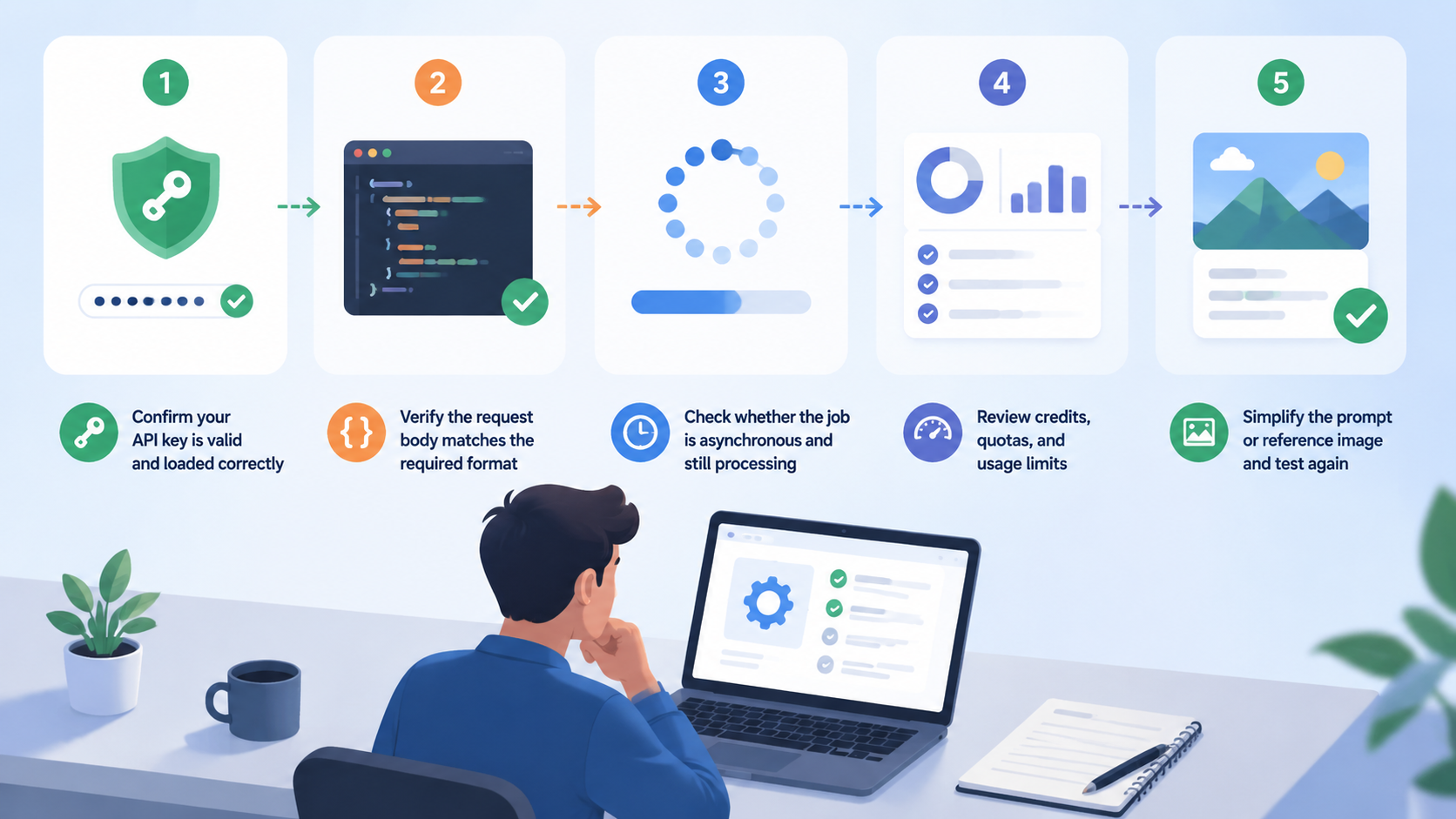
If sora 2 api is not working, follow this order:
- Confirm your API key is valid and loaded correctly
- Verify the request body matches the required format
- Check whether the job is asynchronous and still processing
- Review credits, quotas, and usage limits
- Simplify the prompt or reference image and test again
This sequence helps you isolate whether the issue is authentication, payload structure, workflow handling, or input quality.
FAQ
Why does the Sora 2 API return an error right away?
This usually points to authentication, malformed request data, or an unsupported parameter. Check your API key, model name, and JSON body first.
Why is my video generation stuck?
Video generation may be asynchronous. The job could still be processing, so make sure your app polls the status endpoint and waits for completion.
Can image-to-video fail if the image is valid?
Yes. Even a valid image can cause problems if the URL is inaccessible, the format is unexpected, or the scene instructions conflict with the input.
What should I test first when something breaks?
Start with the smallest possible request: a valid API key, a simple prompt, and a supported model configuration. Then add complexity step by step.
Does multi-shot storytelling affect reliability?
It can. Multi-shot prompts are more complex, so if you see unstable behavior, simplify the scene structure first and confirm the basic flow works.
Conclusion
When sora 2 api is not working, the fix is usually straightforward once you break the problem into parts: authentication, request format, async job handling, usage limits, and input quality. For Sora-style video generation, especially text-to-video and image-to-video workflows, a clean setup and simple test request are the fastest way to identify the real issue.
If you are integrating a unified Sora 2 video generation API, start small, verify each step, and then scale into more advanced use cases like multi-shot sequences, camera control, and synchronized audio.